
The CESI portal refuses to open, the page spins in vain or the password is rejected without explanation. Since the school transitioned part of its authentication to the Microsoft Azure AD infrastructure, the causes of blockage have multiplied. A connection issue with the CESI portal does not always stem from where one might expect, and the distinction between a user-side issue and a server-side incident radically changes the course of action.
Connection issue with CESI portal: real bug or wrong entry point
Before resetting anything, the first check concerns the URL being used. Several reported experiences since the switch to the new authentication indicate that bookmarked links to old subdomains cause silent failures. The page seems to load, then loops or displays a generic error.
Reliable access goes through the updated portal ent.cesi.fr, without any intermediate redirection. If you have kept an intranet link from before the migration, it is likely the source of the blockage.
To attempt to connect to the CESI portal after a failure, opening a private browsing tab with the correct URL allows you to eliminate cache issues, corrupted cookies, and outdated bookmarks in one go. If the connection works in this mode, the problem is local. Otherwise, you need to look elsewhere.

Microsoft Azure AD authentication and cascading blockages
Since the CESI portal relies on centralized Microsoft authentication (Azure AD), the user’s Microsoft account becomes a critical link. An expired password on the Microsoft side, a poorly configured two-factor authentication, or an unrecognized device can block access to the portal even though the CESI credentials have not changed.
This mechanism creates frequent confusion: the student thinks their CESI account is locked, while it is the Microsoft layer that is rejecting the connection. The error message displayed does not always specify which of the two systems is denying access.
Check the status of the Microsoft account first
The quickest approach is to attempt a direct login on portal.office.com with the same credentials. If this connection also fails, the problem lies on the Microsoft side: password needs renewal, two-step verification needs reconfiguration, or session expired on an old device blocking new attempts.
If the Microsoft connection works but the CESI portal remains inaccessible, the issue is more specific to the CESI platform itself, and resetting the CESI password via the automatic link becomes relevant.
Resetting the CESI portal password: what works and what gets stuck
The official recovery procedure goes through a self-reset link sent by email from the login page, without technical support intervention. The timeframe is reduced, but this ease relies on a condition that many students overlook: the personal email declared during registration must be valid and checked.
If this email is an old account you no longer use, or if it contained a typo at registration, the reset link goes into the void. In this specific case, only the campus IT service can unlock the situation by associating a new email with the account.
Points to check before contacting support
- Check the spam and junk folders of the declared email address, as Microsoft reset emails are often filtered by personal mail services
- Ensure that the browser accepts third-party cookies and that JavaScript is enabled, two technical prerequisites for the CESI authentication page to load correctly
- Verify that no content blocker (browser extension, antivirus, network firewall) is intercepting requests to the Microsoft domains used by Azure AD
These checks take less than two minutes and avoid unnecessary waiting with support.
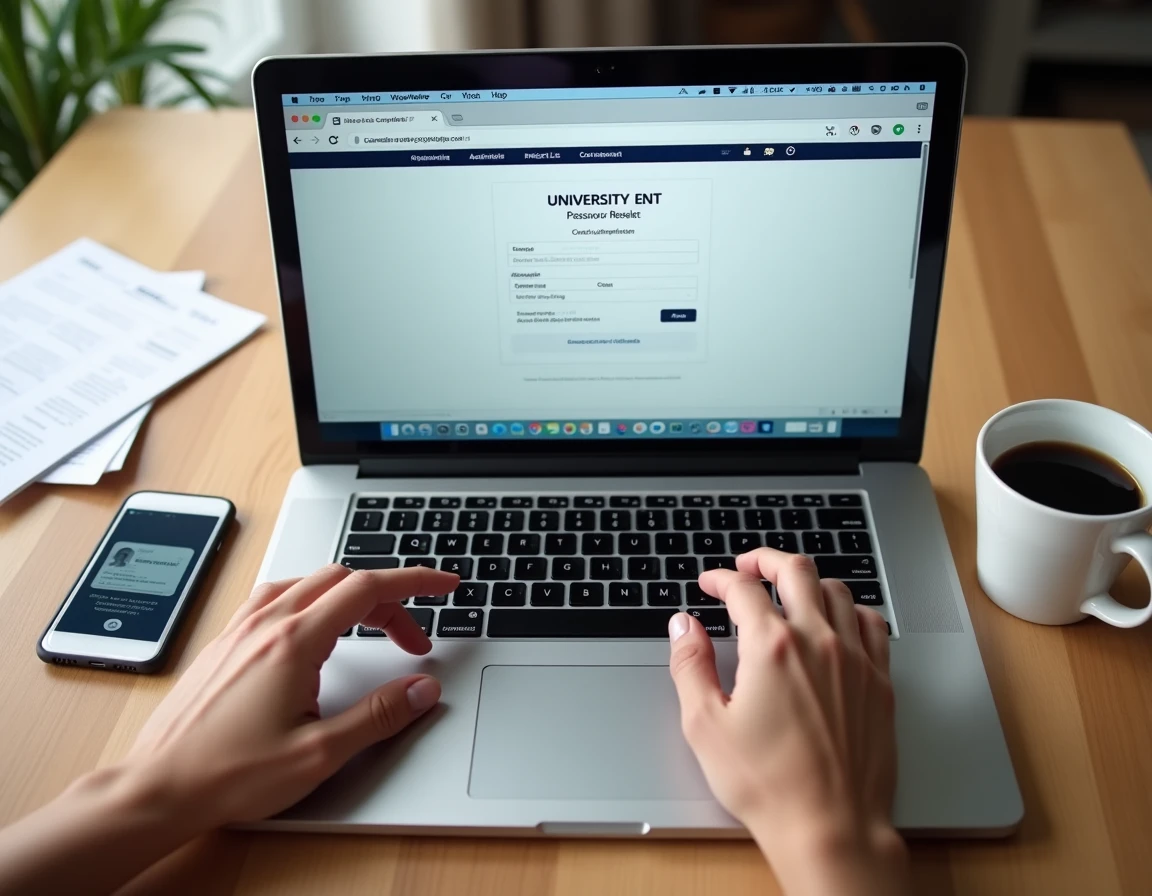
CESI portal connection on mobile: specific pitfalls
Recent testimonials mention connection blockages specific to mobile browsers. Data saver mode, content blockers built into certain browsers (Safari with enhanced protection, Brave, Firefox Focus), and disabling third-party cookies prevent the authentication page from opening.
The typical symptom: the login page remains blank or displays a certificate error, while the same URL works on a computer with a standard browser. This is not a network issue or a password problem; it is an incompatibility between the security settings of the mobile browser and the Azure AD authentication system.
Bypass the issue on smartphone
Using Chrome or Edge mobile with default settings (cookies enabled, no blocker) resolves most of these cases. The other option is to use the Microsoft Authenticator app if two-factor authentication is configured, which bypasses the web form.
Field feedback varies on this point: some users report that the Authenticator app itself requests revalidation after a mobile operating system update, creating a new blockage cycle. Keeping your Authenticator app updated before the start of each course period limits this risk.
When the problem is not on your end: identifying a server-side outage
Not all blockages are individual. The CESI portal experiences scheduled maintenance and, less frequently, unannounced incidents on the Azure AD infrastructure or on the school’s servers. Trying multiple browsers, devices, and networks (home Wi-Fi, mobile hotspot) without success points to a server-side issue rather than a user-side one.
In this case, the most direct check remains to consult the campus information channels (promotion messaging, student groups, school social media) to confirm that other users are experiencing the same blockage at the same time.
Resetting your password during a server outage is not trivial. The reset request may fail silently, or worse, succeed while the new password does not synchronize correctly between systems. It is better to wait for the incident to end, then test the connection with the existing credentials before making any changes.
A connection issue with the CESI portal is resolved in the vast majority of cases by distinguishing three levels: the URL and browser, the underlying Microsoft account, and then the CESI account itself. Addressing these levels in order avoids unnecessary resets and back-and-forth with the campus technical support.